How to connect to Lothone SSTP server
Introduction
Window OS ဗားရှင်း ၇ နှင့်အထက် အသုံးပြုနေသူများအတွက် ဤဆာဗာကို ချိတ်ဆက်နိုင်ရန် အောက်ပါအတိုင်း ဆက်လက်လုပ်ဆောင်ပါ။
အောက်ပါ လမ်းညွှန်ချက်များတွင် Windows 10 ကို အသုံးပြုထားပါသည်။
Instructions
အဆင့် ၁
Windows key ကို နှိပ်ပါ သိုမဟုတ် search bar သို သွားပါ။
အဆင့် ၂
"VPN" ဟု ရိုက်ထည့်ပါ
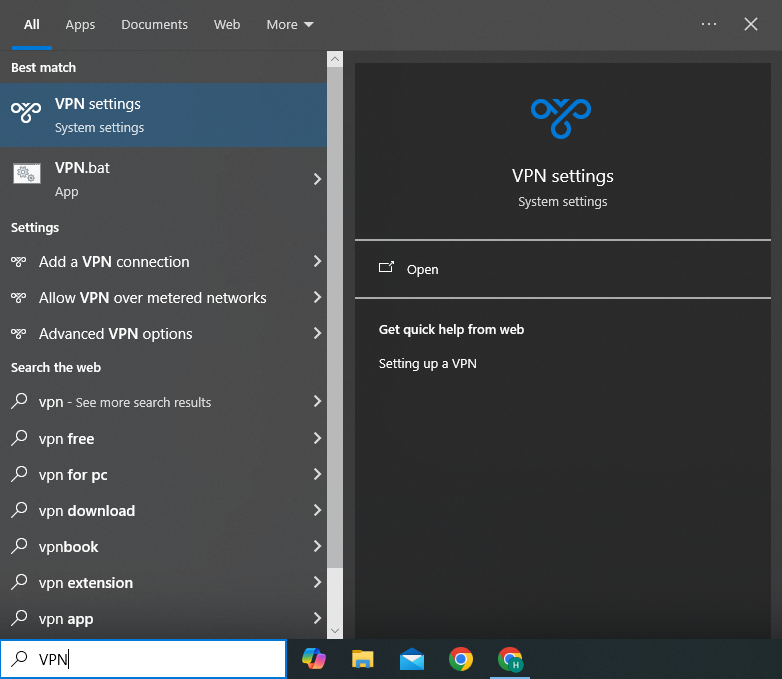
အဆင့် ၃
"Add a VPN connection" ကို ရွေးချယ်ပါ

အဆင့် ၄
ပေါ်လာသည့် setting page တွင် "Add a VPN connection" ကို ထပ်မံရွေးချယ်ပါ။
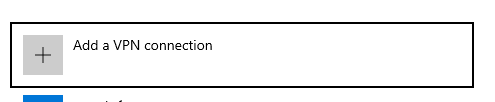
အဆင့် ၅
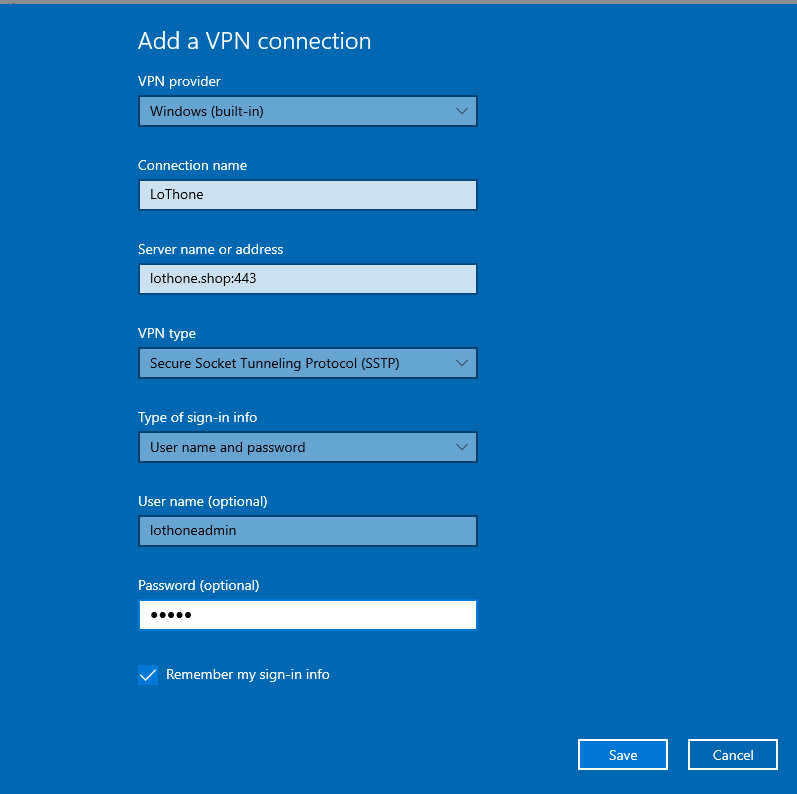
VPN အချက်အလက်များ ထည့်ပါ
ဥပမာ - ဤဆာဗာနှင့် ချိတ်ဆက်ရန်အတွက်:
| VPN provider | Windows(built-in) |
| Connection name | "Your name of choice" |
| Server name or address | "Your server" |
| VPN Type | Secure socket tunneling protocol(SSTP) |
| Type of sign-in info | Username and password |
| Username | "Your username" |
| Password | "Your password" |
ထိုနောက် VPN ချိတ်ဆက်မှုကို save ပါ။ ဆာဗာလိပ်စာတွင် "https://" အား မထည့်ရဘဲ domain နာမည်အပြည့်အစုံ နှင့် port နံပါတ်သာ အသုံးပြုပါ။ အောက်ပါ ပုံတွင် ဥပမာအနေဖြင့် ဖြည့်စွက်ပြထားသည် ကို တွေ့မြင်နိုင်ပါသည်
အဆင့် ၆
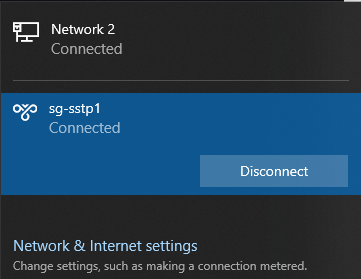
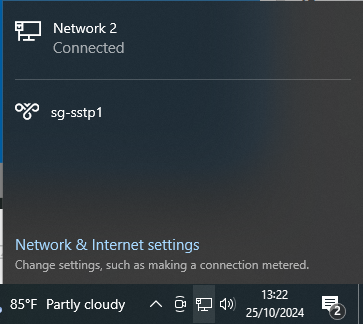
Windows taskbar တွင် network settings သို့ သွားပါ။
အဆင့် ၇
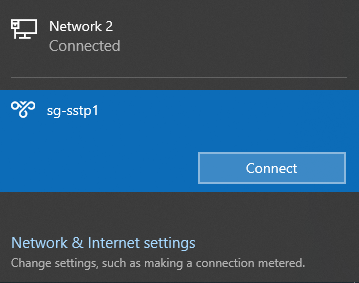
သင့်ချိတ်ဆက်မှုအမည် ကိုနှိပ်ပြီး "Connect" ကို နှိပ်ပါ
How to disconnect SSTP VPN connection
VPN connection ဖြုတ်ရန် သင့်ချိတ်ဆက်မှုအမည် ကို နှိပ်ပြီး "Disconnect" ကို နှိပ်ပါ